> ## Documentation Index
> Fetch the complete documentation index at: https://docs.directenergypartners.com/llms.txt
> Use this file to discover all available pages before exploring further.

# Credentials

### Change Admin Password

<Note>
  It is highly recommended to change the default password for the admin user. This enhances security by ensuring the
  controller is protected with a password of your choice.
</Note>

To change the admin user password, follow these steps:

<Steps>
  <Step title="Login to the WBM">
    <Card title="Login to the WBM" icon="lock-open" href="/installation/settings/login" horizontal>
      Login to the Web-Based Management (WBM) interface of the Power Platform controller.
    </Card>
  </Step>

  <Step title="Navigate to the Security Tab">
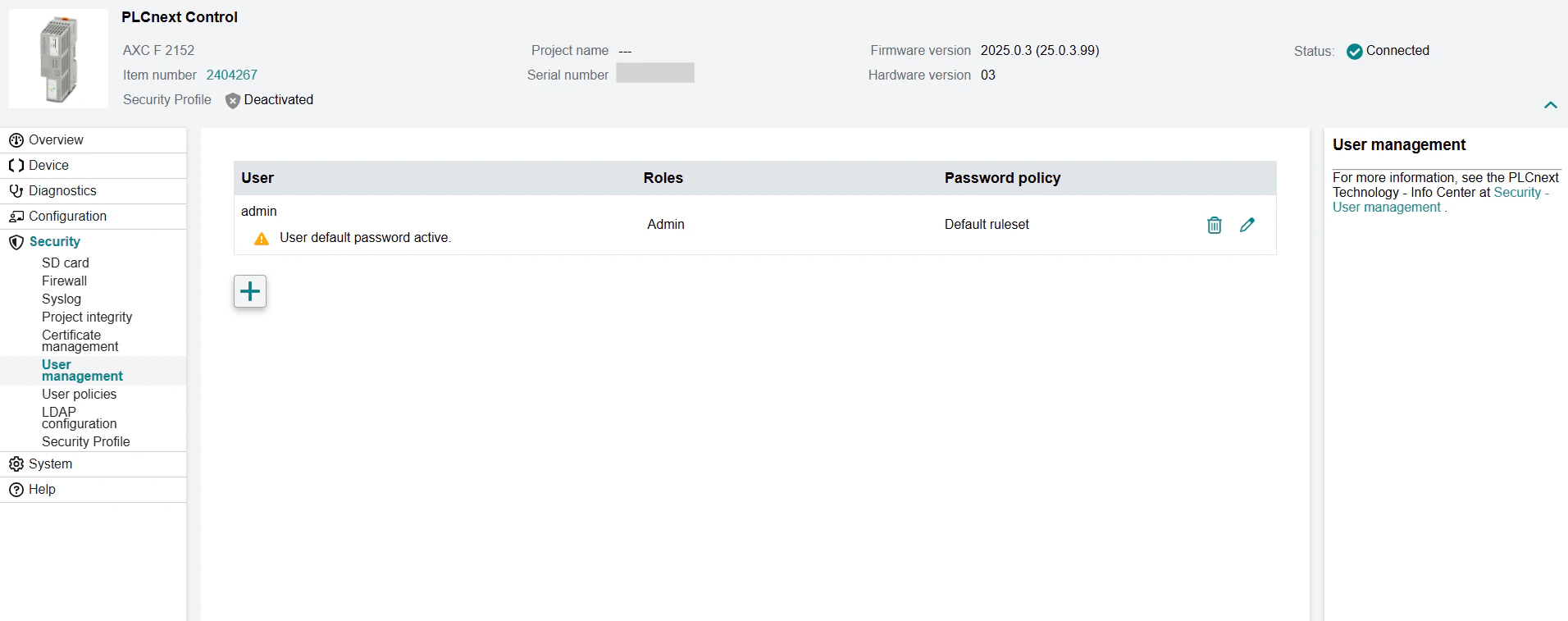
    Navigate to the **Security** tab in the left navigation plane and select **User Management**.
  </Step>

  <Step title="Change Password">
    For the admin user, click on the pencil icon next to the user name to edit.
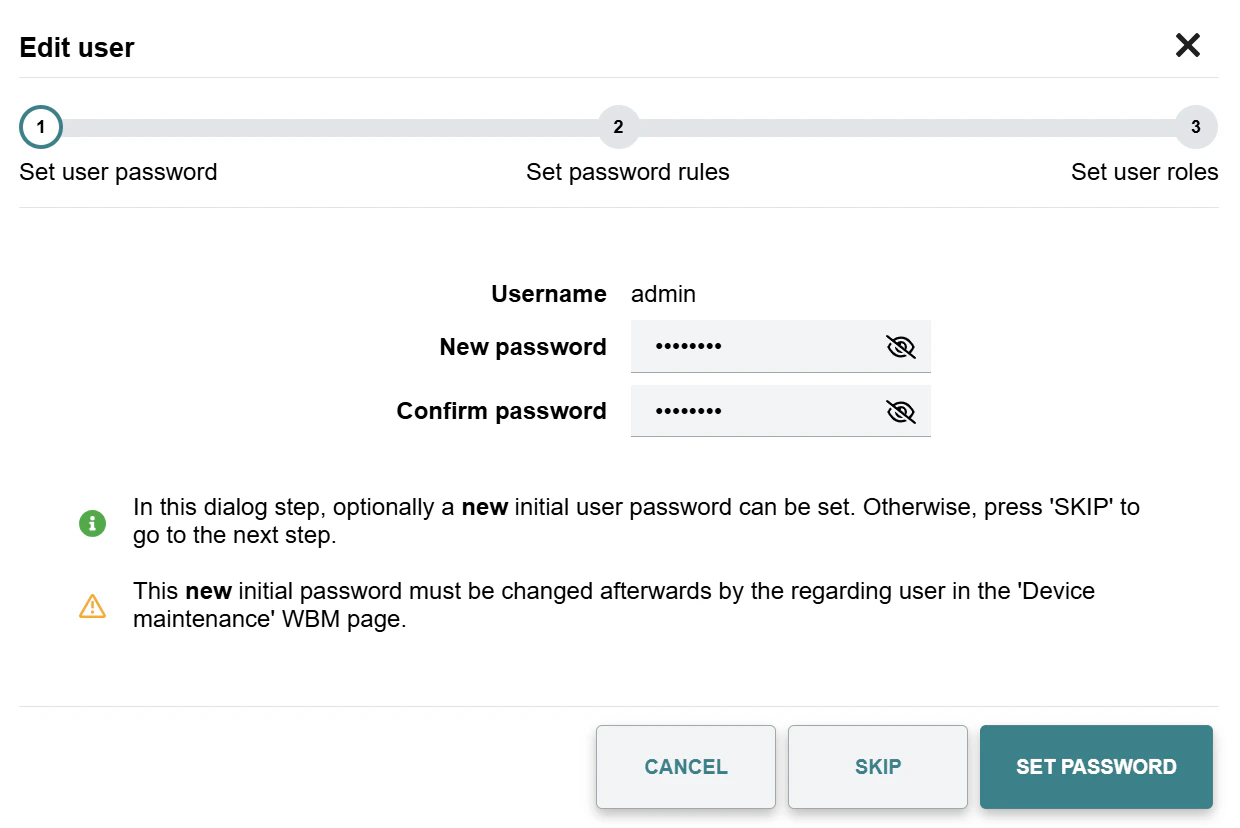
    Type in the new password for the admin user and confirm.
    <img src="https://mintcdn.com/directenergypartners/NUG_FidRKWJZAe9-/images/wbm_security_user_management.png?fit=max&auto=format&n=NUG_FidRKWJZAe9-&q=85&s=4d64fdd4d069fc62afa7146ae7d67a7c" alt="Change Credentials" style={{ margin: 'auto' }} width="1912" height="757" data-path="images/wbm_security_user_management.png" />
  </Step>

  <Step title="Set Password">
    Press the **Set Password** button to save the new password.
    <img src="https://mintcdn.com/directenergypartners/NUG_FidRKWJZAe9-/images/wbm_set_password.png?fit=max&auto=format&n=NUG_FidRKWJZAe9-&q=85&s=7ff536b45bcef72bf628c56838cfddc8" alt="Set Password" style={{ margin: 'auto' }} width="1240" height="828" data-path="images/wbm_set_password.png" />
  </Step>
</Steps>
