> ## Documentation Index
> Fetch the complete documentation index at: https://docs.directenergypartners.com/llms.txt
> Use this file to discover all available pages before exploring further.
# Connection
Once the PPL Dashboard is running, open your browser and navigate to [localhost:8000](http://localhost:8000).
Before connecting, ensure that the controller is powered on and that the following files have been added to the
controller: the `license.txt` file, and the `etc` folder containing the `config.json`, `devices.json`, and all
associated address map files. For instructions on creating these files, refer to the
[File Configuration](/configure/index) section.
### Connect to the Controller
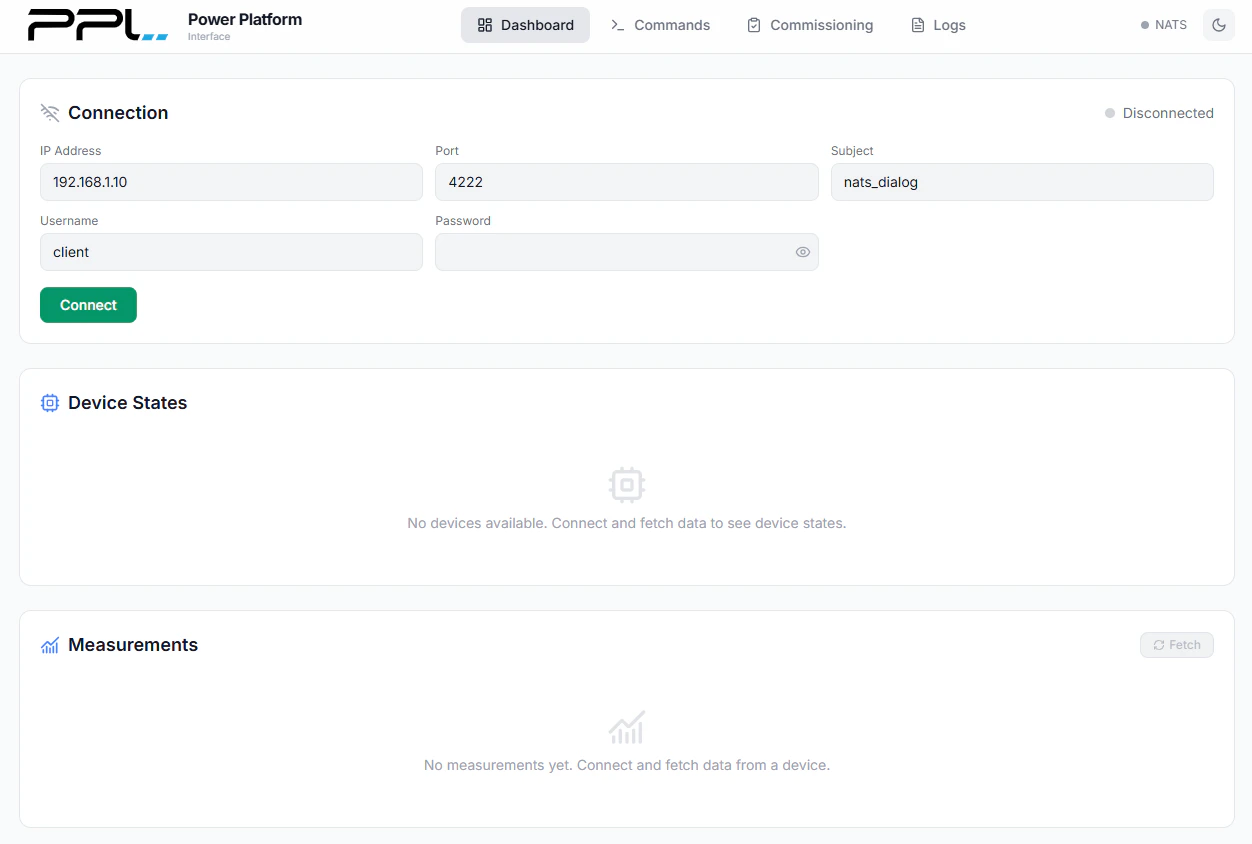
In the connection settings, enter the IP address of the PPL controller.
Ensure the port is set to `4222`.
Update the **username** and **password** fields to match the credentials defined in the `config.json` file on the
controller, under the `nats` entry.
The username and password must be identical to the values in the `config.json` file. If they do not match, the
connection will fail and you will be prompted with an authorization error.
Click **Connect** to establish the connection to the controller.
 ### Troubleshooting Connection Issues
If the dashboard is unable to connect to the controller, review the following common causes:
### Troubleshooting Connection Issues
If the dashboard is unable to connect to the controller, review the following common causes:
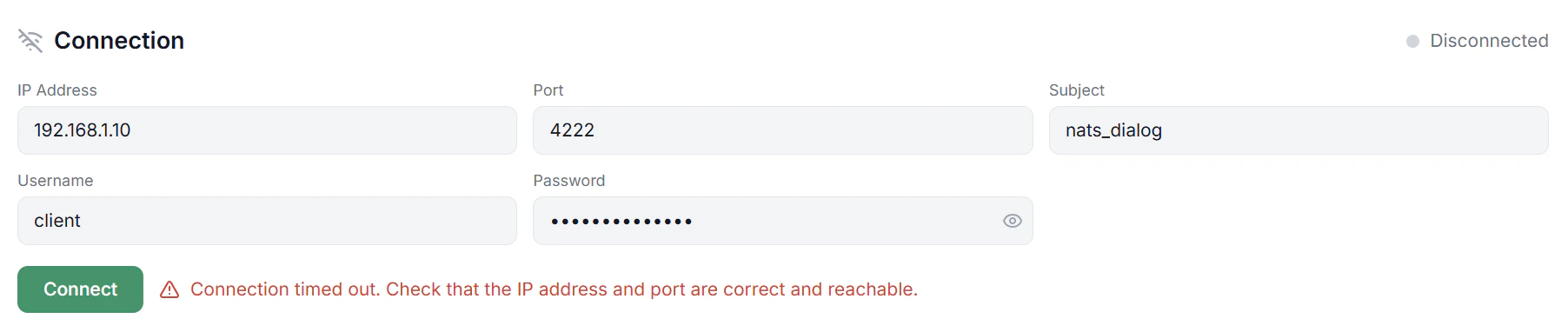 If the application indicates that it took too long to establish a connection, this is a probable indication that:
* The **IP address** is incorrect.
* The **port** is not set to `4222`.
* The **controller is not online** or not reachable on the network.
* The **PPL application has not started** on the controller. Possible causes include:
* Missing `license.txt` file on the controller.
* Missing `devices.json` file on the controller.
* Missing `config.json` file on the controller.
If the application indicates that it took too long to establish a connection, this is a probable indication that:
* The **IP address** is incorrect.
* The **port** is not set to `4222`.
* The **controller is not online** or not reachable on the network.
* The **PPL application has not started** on the controller. Possible causes include:
* Missing `license.txt` file on the controller.
* Missing `devices.json` file on the controller.
* Missing `config.json` file on the controller.
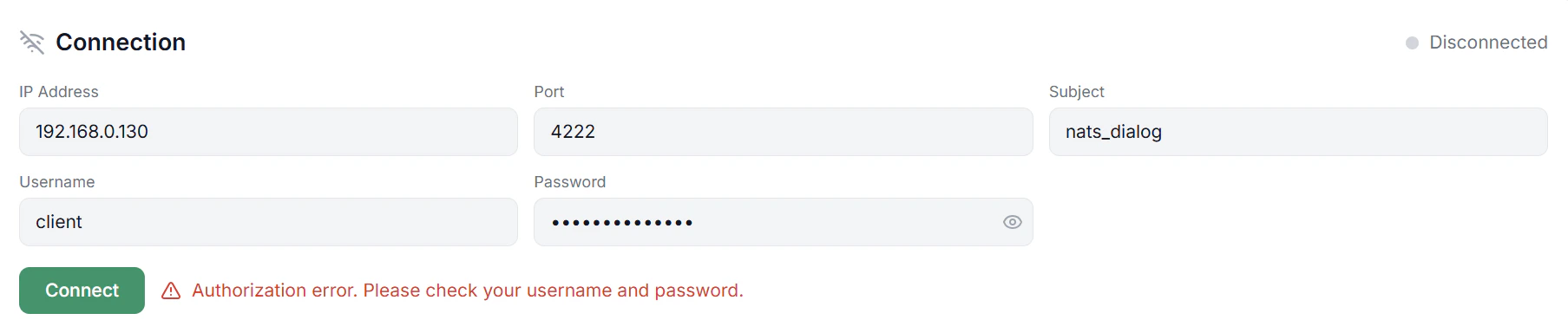 If you receive an authorization error, the **username** or **password** does not match the credentials defined in the
`config.json` file under the `nats` entry. Verify and correct the credentials, then try connecting again.
If you receive an authorization error, the **username** or **password** does not match the credentials defined in the
`config.json` file under the `nats` entry. Verify and correct the credentials, then try connecting again.